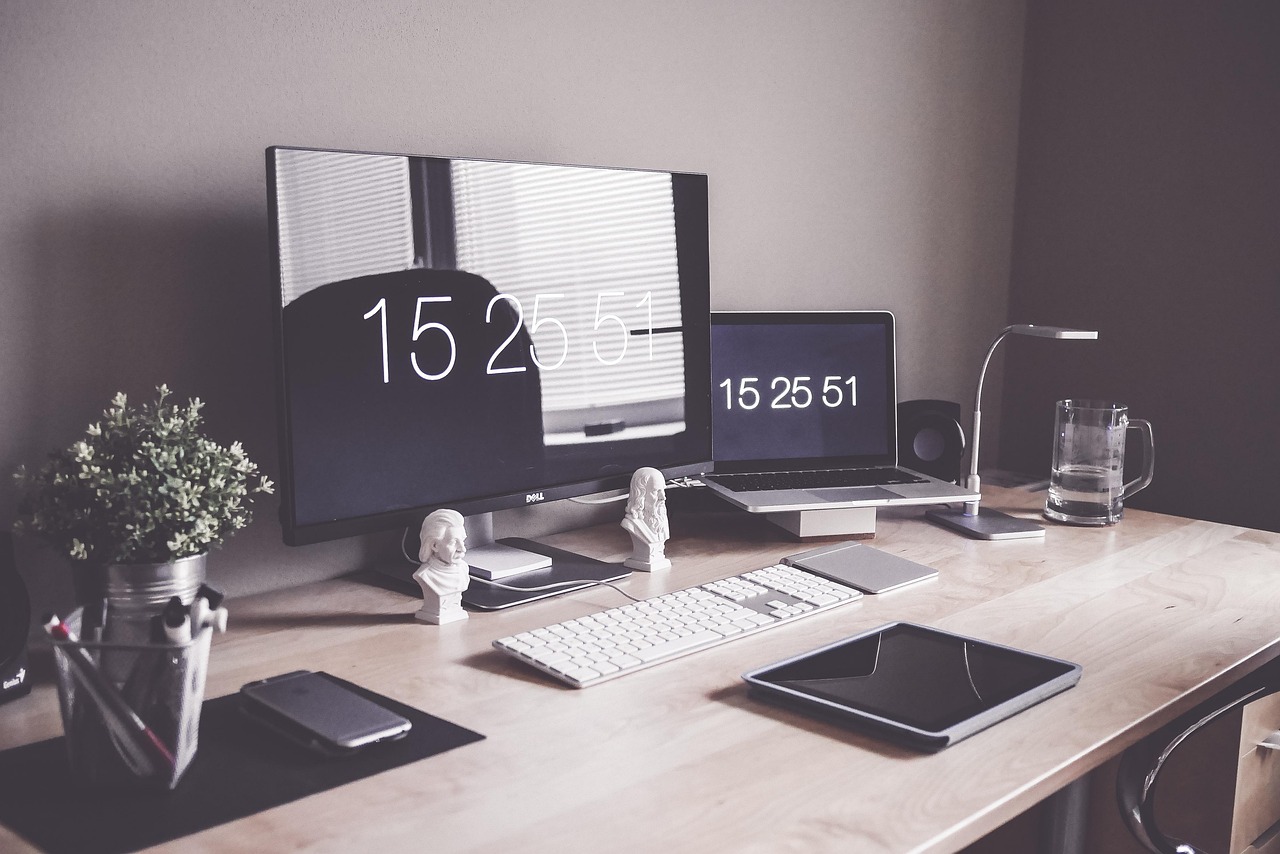
A second monitor should make your broadcast easier to oversee, rather than increase the amount of desktop you might accidentally show. Before your first stream, decide which screen is for the game and which is for monitoring the software and chat.
Arrange the displays Identify your monitors in Windows display settings and arrange them to match their positions on your desk. Microsoft describes the extended desktop mode, which lets you show different content across the screens. Test moving the pointer between them. If it disappears at the wrong edge, correct the arrangement before launching your game.
Give windows regular positions Place the stream preview, audio panel and chat on your control screen in an order that matches the way you look at them. Close private email and documents instead of hiding them behind other windows. Applications can move after a resolution change or a cable is disconnected, so the habit of keeping them on a "second screen" does not itself prevent their contents from appearing in the broadcast.
Check exactly what is captured Make a recording in which you switch from the game to the desktop, open a menu and return to playing. Watch what was actually recorded. Avoid judging the capture solely by the source's name. When you next start the setup, confirm that the selected screen still corresponds to the same device, especially after changing connectors or a docking station.
Reduce movement and distractions Position your most frequently checked panel where you can glance at it without spending a long time turning away from the game. Keep chat readable and minimise unnecessary windows. You do not need to buy two identical monitors simply to try this arrangement. Use the screens you already have first and assess whether the second one genuinely makes running the stream quicker. A note about window positions will help you recreate a working layout after a restart.
Another question in mind? Browse the other guides ↗